Two-Factor Authentication: The Complete Setup Guide
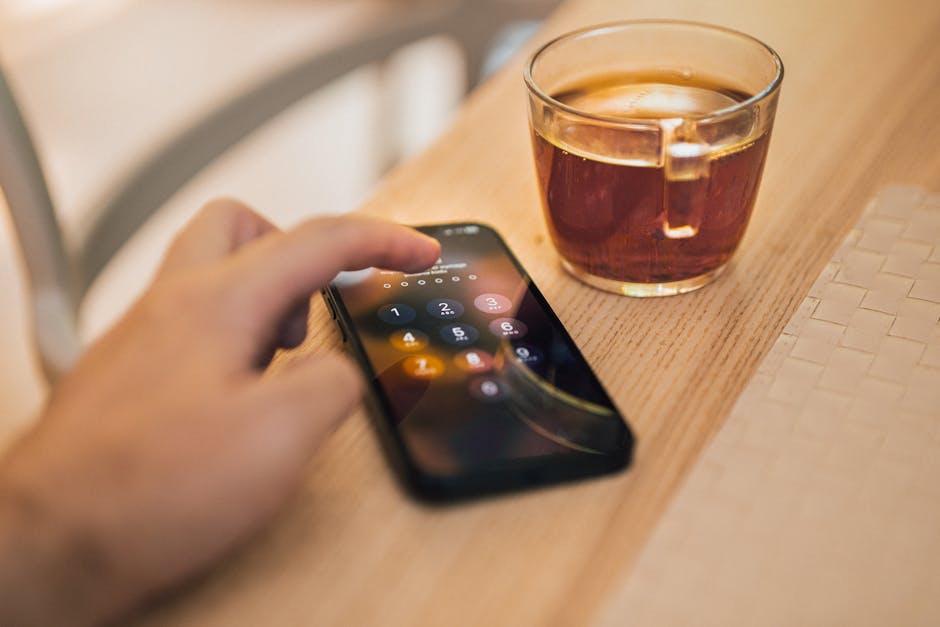
*Photo by Zulfugar Karimov on Pexels*
Passwords alone are no longer enough. In 2026, account takeover attacks increased by 45%. Two-factor authentication (2FA) blocks 99.9% of these attacks — even if your password is stolen. This guide explains what 2FA is, how to set it up, and which method to choose.
## What Is Two-Factor Authentication?
2FA adds a second verification step when you log in. Even if someone steals your password, they cannot access your account without the second factor. The three types of factors are:
- Something you know — Your password (factor one)
- Something you have — Your phone or hardware key (factor two)
- Something you are — Your fingerprint or face (factor two)
Most 2FA setups use your password as the first factor and your phone as the second factor.
## Types of 2FA: Ranked by Security
### Best: Hardware Security Keys (FIDO2/WebAuthn)
Hardware keys are small USB or NFC devices that you plug into your computer or tap on your phone. They are the most secure 2FA method.
- How it works: Press a button on the key to authenticate
- Security level: Maximum — resistant to phishing and malware
- Cost: $25-$50 one-time purchase
- Best for: Email accounts, password managers, cryptocurrency exchanges
### Good: Authenticator Apps (TOTP)
Authenticator apps generate 6-digit codes that refresh every 30 seconds. They do not require internet access to work.
- How it works: Open the app, copy the code, enter it on the login page
- Security level: High — codes are generated offline
- Cost: Free
- Best for: Most online accounts
Recommended apps: Google Authenticator, Authy, Microsoft Authenticator, 2FAS
### Okay: SMS Codes
A text message with a code is sent to your phone.
- How it works: Enter the code from the SMS
- Security level: Moderate — vulnerable to SIM swapping attacks
- Cost: Free (carrier charges may apply)
- Best for: Accounts that do not support other 2FA methods
Avoid SMS 2FA when possible. SIM swapping attacks allow hackers to redirect your SMS messages to their phone.
### Avoid: Email Codes
A code is sent to your email address.
- How it works: Check your email, enter the code
- Security level: Low — if someone has your email password, they also have your 2FA codes
- Best for: Accounts that offer no other option
## How to Set Up 2FA: Step by Step
### Using an Authenticator App
1. Download an authenticator app — Google Authenticator, Authy, or 2FAS
2. Go to your account security settings — Look for “Security,” “Two-Factor Authentication,” or “Login Protection”
3. Select “Authenticator App” — The site will show a QR code
4. Scan the QR code with your authenticator app — Hold your phone up to the screen
5. Enter the 6-digit code — The app generates a new code every 30 seconds
6. Save backup codes — The site will give you 5-10 one-time backup codes. Store them somewhere safe
### Using a Hardware Security Key
1. Plug in your security key — USB-A, USB-C, or NFC
2. Select “Security Key” in your account settings
3. Follow the browser prompts — You will press a button on the key
4. Register a backup key — Always have a spare in case you lose the primary
## Accounts That Must Have 2FA
Prioritize these accounts:
1. Email provider — Your email is the key to resetting all other passwords
2. Password manager — Protects all your other accounts
3. Banking and financial accounts — Direct access to money
4. Social media — Prevent impersonation and account hijacking
5. Domain registrar and hosting — Business-critical infrastructure
6. Cryptocurrency exchanges — Irreversible transactions
## Backup and Recovery
Losing your 2FA device can lock you out of your accounts permanently. Prepare for this:
- Save backup codes — Print them and store them in a physical safe
- Register multiple devices — Add your phone and a tablet or security key
- Use Authy — Authy backs up your 2FA tokens to the cloud (encrypted), allowing recovery if you lose your phone
- Keep a hardware key as backup — Even if you use an authenticator app, buy a $25 key and register it as a backup
## Common 2FA Mistakes
- Only having one device — If you lose your phone without backup, you lose access
- Skipping backup codes — You will need these if your phone is lost or stolen
- Using SMS everywhere — SIM swapping is a real threat
- Not enabling 2FA on email — Email is the most important account to protect
- Sharing 2FA codes — Never give a code to anyone, even someone claiming to be support
## Conclusion
Two-factor authentication is the easiest way to dramatically improve your account security. Start with your email and password manager, use an authenticator app rather than SMS, and always save backup codes. Setting everything up takes about 30 minutes and protects you from 99.9% of account attacks.
For more digital security guides and tips, visit cybernote.tech.
*For more digital security resources and guides, visit cybernote.tech.*