Passwordless Authentication: What It Is and How to Set It Up
Passwordless authentication replaces traditional passwords with secure, frictionless methods like biometrics, hardware keys, or one-time codes. Instead of memorizing complex strings, you verify your identity using something you *are* (fingerprint, face), *have* (phone, security key), or *know* (PIN). This approach eliminates password theft, phishing risks, and credential reuse. To set it up, enable passkeys on your devices, use a FIDO2 security key for critical accounts, and adopt an authenticator app for services that support WebAuthn. The result: stronger security, faster logins, and zero password fatigue.
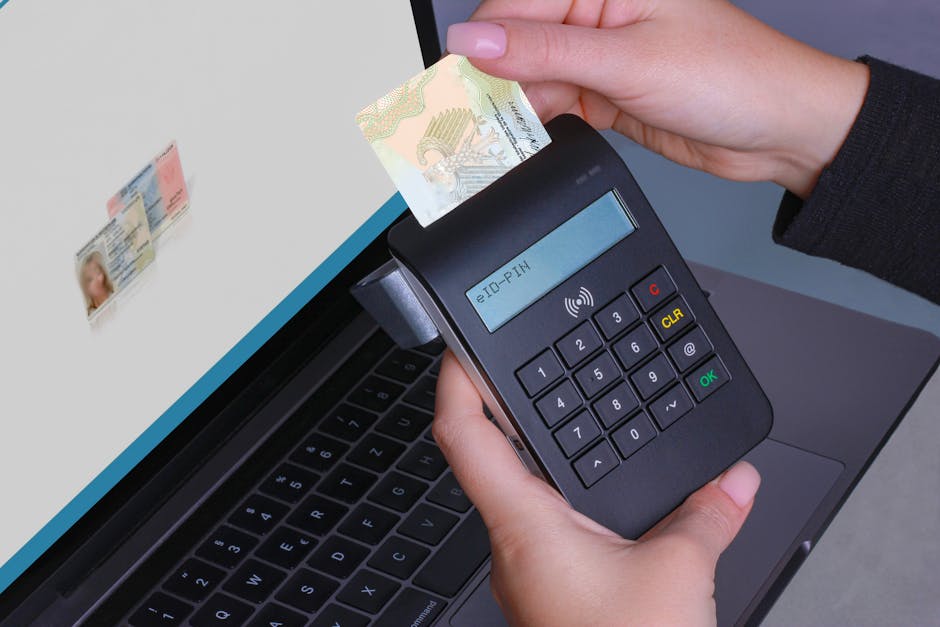
Photo by REINER SCT on Pexels
## Why Passwords Are Failing You
Passwords are the weakest link in digital security. Over 80% of data breaches involve compromised credentials. Even strong passwords fail due to:
- Phishing attacks that trick you into entering credentials
- Credential stuffing using leaked passwords from other sites
- Weak habits like reusing the same password across accounts
- Brute force tools that crack simple passwords in seconds
Passwordless authentication solves these problems by removing the password entirely.
## What Is Passwordless Authentication?
Passwordless authentication verifies your identity without a traditional password. It relies on public-key cryptography where your device generates a key pair:
- Private key stays on your device (never shared)
- Public key is stored on the server
When you log in, your device signs a challenge with the private key. The server verifies it using the public key. No password ever travels over the network.
### Common Passwordless Methods
| Method | How It Works | Security Level |
|---|---|---|
| Passkeys | Biometric or PIN unlocks stored private key | High |
| Hardware Security Keys | USB/NFC device signs authentication requests | Very High |
| Authenticator Apps | Time-based one-time codes (TOTP) | Medium-High |
| Magic Links | Email link with single-use token | Medium |
| SMS Codes | Text message with temporary code | Low (SIM swap risk) |
Pro tip: For maximum security, use hardware keys for critical accounts (email, banking) and passkeys for everyday services.
## How Passwordless Authentication Works
The process is simple and fast:
1. Registration: Your device creates a key pair. The public key goes to the service; the private key stays local.
2. Authentication: The service sends a cryptographic challenge to your device.
3. Verification: Your device signs the challenge using the private key (unlocked via biometric or PIN).
4. Access: The server validates the signature and grants access.
This happens in under a second. No passwords to type, remember, or reset.
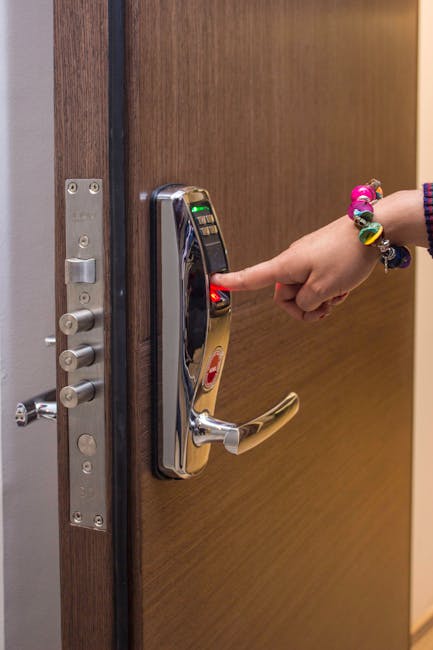
Photo by Gustavo Galeano Maz on Pexels
## Benefits of Going Passwordless
### 1. Eliminates Phishing
Since there’s no password to steal, phishing attacks become useless. Even if a fake site looks identical, it can’t capture your private key.
### 2. Prevents Credential Theft
Your private key never leaves your device. Server breaches only expose public keys, which are useless to attackers.
### 3. Reduces Login Friction
No more typing passwords, resetting forgotten ones, or dealing with complexity rules. One touch or glance and you’re in.
### 4. Strengthens Multi-Factor Security
Passwordless methods often combine something you have (device) with something you are (biometric) — true two-factor authentication.
### 5. Saves IT Support Time
Password resets account for 20-50% of help desk tickets. Passwordless eliminates them entirely.
## How to Set Up Passwordless Authentication (Step-by-Step)
Follow these steps to secure your digital life with passwordless methods.
### Step 1: Enable Passkeys on Your Devices
On iOS/iPadOS:
- Go to Settings > Passwords > Passkey Options
- Enable iCloud Keychain for passkey sync
- Use Face ID or Touch ID to authorize
On Android:
- Open Settings > Google > Password Manager
- Turn on Passkeys and Google Play Services
- Set up fingerprint or face unlock
On Windows:
- Go to Settings > Accounts > Sign-in Options
- Enable Windows Hello (face, fingerprint, or PIN)
- Choose Require Windows Hello sign-in for Microsoft accounts
Pro tip: Create passkeys for major services like Google, Microsoft, Apple, and GitHub. Each generates a unique key per site.
### Step 2: Get a FIDO2 Security Key
Hardware keys provide the strongest protection. Recommended models:
- YubiKey 5 Series – Supports USB-A, USB-C, NFC
- Google Titan Security Key – Works with Google accounts
- SoloKey – Open-source and affordable
Setup process:
1. Insert the key into your device
2. Register it on supported services (Google, Facebook, Twitter, Dropbox)
3. Set a PIN on the key for extra protection
4. Buy a backup key and store it separately

Photo by cottonbro studio on Pexels
### Step 3: Use an Authenticator App for WebAuthn
Apps like Authy, Google Authenticator, or Microsoft Authenticator support passwordless login via WebAuthn.
Setup:
1. Install your chosen app
2. Go to account security settings on a service
3. Select Add Security Key or Set Up Passkey
4. Scan the QR code with the app
5. Verify with biometric or device PIN
Best practice: Enable cloud backup in Authy to recover your keys if you lose your phone.
### Step 4: Migrate Critical Accounts
Start with your most important accounts:
- Email provider (Gmail, Outlook, ProtonMail)
- Password manager (Bitwarden, 1Password)
- Social media (Facebook, Twitter, LinkedIn)
- Financial services (banking, PayPal, crypto exchanges)
- Cloud storage (Google Drive, Dropbox, iCloud)
Checklist for each account:
Enable passkey or security key
Remove SMS as a backup method
Disable password-based login if possible
Test the new method before removing old one
### Step 5: Secure Your Recovery Options
Passwordless doesn’t mean unrecoverable. Set up:
- Multiple security keys (keep one at home, one in a safe)
- Recovery codes printed and stored offline
- Trusted devices that can approve recovery
- Backup passkeys on a secondary phone or tablet
Warning: Never store recovery codes in your password manager or email. Use a physical safe or encrypted USB drive.
## Common Concerns About Passwordless Authentication
### “What if I lose my device?”
Use recovery codes and backup keys. Services like Apple and Google let you add trusted phone numbers for account recovery.
### “Is it safe from hackers?”
Yes. Public-key cryptography is mathematically secure. Even if a server is breached, attackers can’t forge authentication without your private key.
### “Can I use it everywhere?”
Not yet. Some legacy services still require passwords. But major platforms (Google, Microsoft, Apple, Facebook, Twitter) now support passkeys or FIDO2.
## Comparison: Passwordless vs. Traditional Passwords
| Feature | Passwordless | Traditional Passwords |
|---|---|---|
| Phishing resistance | Built-in | None |
| Login speed | <1 second | 10-30 seconds |
| Memory required | Zero | Must remember or use manager |
| Breach impact | Minimal (public keys only) | Full credential exposure |
| Multi-factor | Inherent (device + biometric) | Requires separate setup |
| User experience | Frictionless | Frustrating |
The verdict: Passwordless wins on every metric except universal support (which is growing fast).
## Conclusion
Passwordless authentication is the most practical upgrade you can make to your digital security today. It eliminates the biggest attack vector—passwords—while making logins faster and easier. Start with passkeys on your phone, add a hardware key for critical accounts, and migrate your most important services one by one.
Ready to go passwordless? Join cybernote.tech today for exclusive guides, tool recommendations, and member-only tutorials on implementing passwordless security across all your devices. Our community of privacy-focused members shares real-world setups and troubleshooting tips. Sign up now at cybernote.tech and never type another password again.