How to Set Up Two-Factor Authentication on All Your Online Accounts
Two-factor authentication (2FA) adds a crucial second layer of security to your online accounts, preventing unauthorized access even if your password is stolen. To set it up, go to your account’s security settings, select “Two-Factor Authentication,” choose your preferred method (authenticator app, SMS, or hardware key), and follow the on-screen prompts. This guide walks you through enabling 2FA on major platforms—email, social media, banking, and more—so you can lock down your digital life in under 30 minutes.
## Why You Need Two-Factor Authentication Now
Passwords alone are no longer enough. Data breaches expose billions of credentials yearly, and phishing attacks trick users into handing over login details. 2FA stops 99.9% of automated attacks, according to Microsoft. It requires something you know (your password) plus something you have (your phone or hardware key). Without it, your accounts are vulnerable.
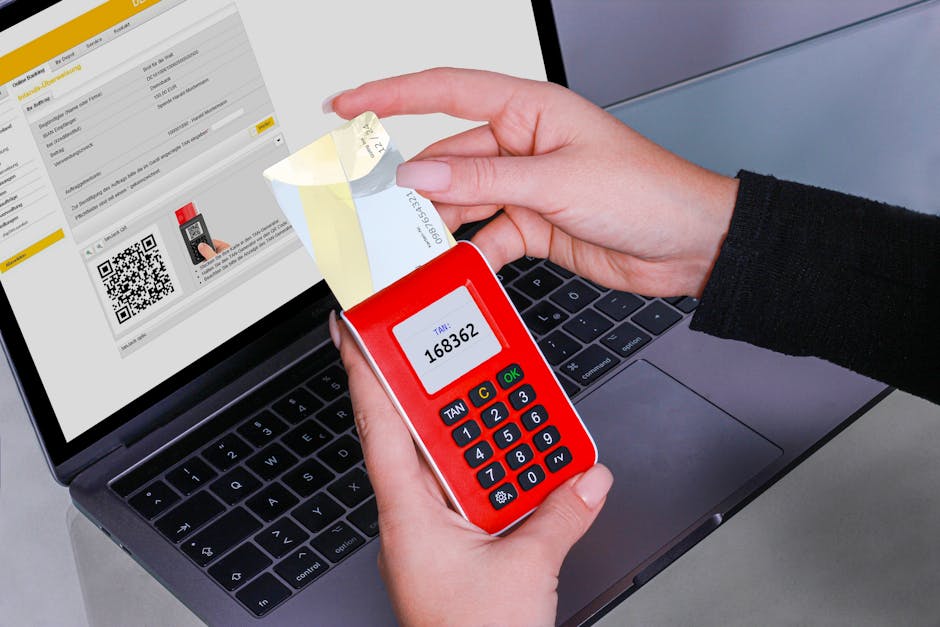
Photo by REINER SCT on Pexels
## Choosing the Best 2FA Method
Not all 2FA is equal. Here’s a quick comparison:
| Method | Security Level | Convenience | Best For |
|---|---|---|---|
| Authenticator App (e.g., Google Authenticator, Authy) | High | Medium | Most accounts |
| SMS/Text Message | Low | High | Backup only |
| Hardware Key (e.g., YubiKey) | Very High | Low | High-value accounts |
| Biometric (fingerprint, face) | High | High | Mobile devices |
Avoid SMS when possible—it’s vulnerable to SIM swapping attacks. Use an authenticator app as your primary method.
## How to Set Up 2FA on Major Platforms
### Email Accounts
Email is the key to your digital kingdom—hackers can reset other passwords via email.
Gmail:
1. Go to myaccount.google.com > Security > 2-Step Verification.
2. Click “Get Started” and sign in.
3. Choose Google Prompt (phone notification) or Authenticator App.
4. Scan the QR code with your app and enter the code.
5. Save backup codes in a secure place.
Outlook:
1. Visit account.microsoft.com > Security > Advanced Security.
2. Click “Turn on two-step verification.”
3. Select “App” or “Phone” as your method.
4. Follow the setup wizard.
Pro tip: Print backup codes and store them in a safe—or use a password manager like Bitwarden.
### Social Media Accounts
Social platforms hold personal data and can be used for impersonation.
Facebook:
1. Settings & Privacy > Settings > Security and Login.
2. Scroll to “Two-Factor Authentication” and click “Edit.”
3. Choose Authentication App or Security Key.
4. Scan QR code and enter the code.
Twitter/X:
1. More > Settings and Privacy > Security and Account Access > Security.
2. Click “Two-Factor Authentication.”
3. Select “Authentication App” (not SMS).
4. Scan QR code and confirm.
Instagram:
1. Profile > Settings > Security > Two-Factor Authentication.
2. Toggle “Authentication App” on.
3. Follow app setup instructions.
### Banking and Financial Accounts
Financial accounts require the highest security—use hardware keys if supported.
Most banks (Chase, Bank of America, Wells Fargo):
1. Log in to online banking.
2. Go to Profile/Settings > Security > Two-Factor Authentication.
3. Choose SMS or Authenticator App (rarely both).
4. Verify your phone number or scan QR code.
PayPal:
1. Settings > Security > Two-Factor Authentication.
2. Click “Set Up” and choose Authenticator App.
3. Scan QR code and enter the verification code.
Warning: Some banks only offer SMS. If so, use a separate phone number for 2FA (Google Voice works).
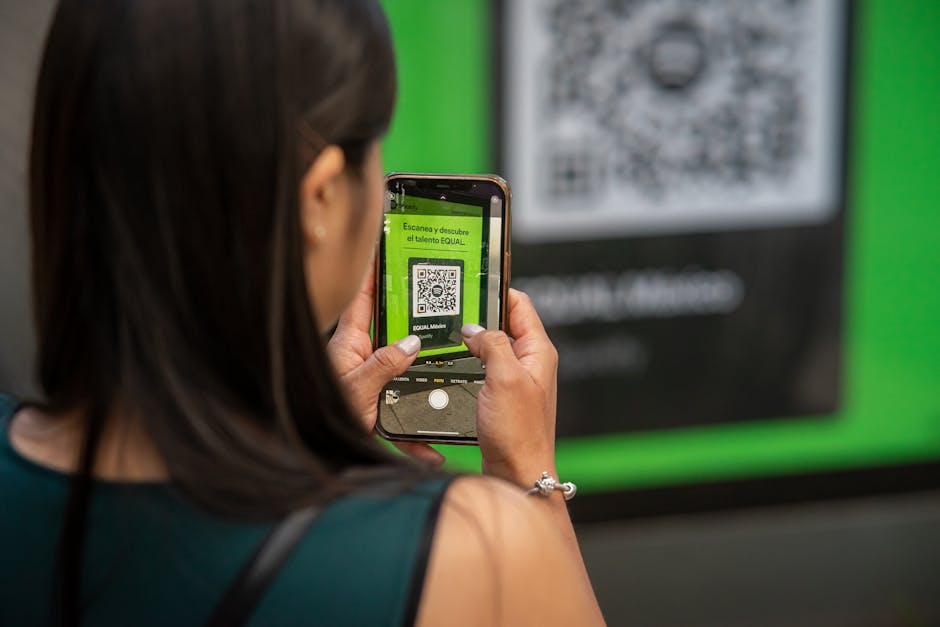
Photo by Julio Lopez on Pexels
### Cloud Storage and Productivity Tools
These accounts hold your files, notes, and passwords.
Google Drive:
Same as Gmail—enable 2FA in Google Account settings.
Dropbox:
1. Settings > Security > Two-Step Verification.
2. Click “Enable” and choose Authenticator App.
3. Scan QR code and enter code.
Microsoft OneDrive:
Same as Outlook—enable 2FA in Microsoft Account settings.
### Gaming and Streaming Platforms
Don’t overlook these—they often have payment info linked.
Steam:
1. Steam > Settings > Account > Manage Steam Guard.
2. Select “Steam Guard via the Steam app.”
3. Download Steam app on your phone and scan QR code.
Twitch:
1. Settings > Security > Two-Factor Authentication.
2. Choose Authenticator App.
3. Scan QR code and enter code.
Netflix:
1. Account > Security > Two-Factor Authentication.
2. Enable via email or SMS (authenticator app not supported).
## Best Practices for 2FA Management
### Use One Authenticator App for All
Apps like Authy or Google Authenticator let you store multiple 2FA codes. Authy offers encrypted backups—switch if you lose your phone.
### Enable Backup Codes
Every platform provides backup codes during setup. Save them offline—print them or store in a password manager. Without them, you’ll be locked out if you lose your phone.
### Add a Hardware Key for Critical Accounts
For email, banking, and password managers, buy a YubiKey or Google Titan Key. They’re phishing-proof and work offline. Plug in or tap to authenticate.

Photo by cottonbro studio on Pexels
### Set Up Recovery Options
Link a backup phone number or email address. If you lose your primary 2FA method, recovery options prevent permanent lockouts.
## Troubleshooting Common 2FA Issues
### Lost Your Phone?
Use backup codes to regain access. If you lost them too, contact the platform’s support with proof of identity (e.g., ID card, security questions). This can take days—so store codes safely.
### Authenticator App Not Syncing?
Check your device’s time settings. Authenticator apps rely on accurate time—enable “Automatic time zone” and “Set time automatically” in your phone settings.
### SMS Codes Not Arriving?
Contact your carrier—SIM swap may have occurred. Switch to an authenticator app immediately.
## Conclusion
Two-factor authentication is the single most effective step you can take to secure your online accounts. Start with your email, then move to social media, banking, and cloud services. Use an authenticator app as your primary method, save backup codes, and consider a hardware key for critical accounts. Don’t delay—hackers are counting on you to skip this step.
Ready to take your digital security further? At cybernote.tech, we provide premium guides, tools, and community support for encryption, privacy, and security. Join our membership today and lock down every account you own.