How to Secure Your Home Wi-Fi Network Against Hackers and Intruders
Securing your home Wi-Fi network is critical for protecting your personal data, devices, and privacy. The quickest wins include: changing the default router password, enabling WPA3 encryption, disabling WPS, and updating firmware regularly. These steps block 90% of common attacks. Below, we break down every action you need to take—from basic settings to advanced tools—to keep hackers and intruders out of your network.
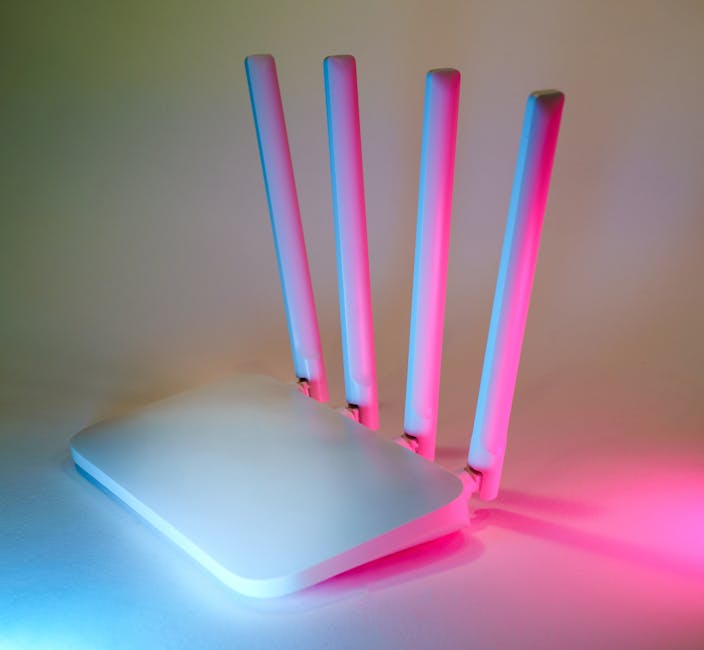
Photo by Jakub Zerdzicki on Pexels
## Why Home Wi-Fi Security Matters
Your Wi-Fi network is the gateway to all your connected devices—laptops, phones, smart TVs, security cameras, and even smart locks. If a hacker breaches your Wi-Fi, they can:
- Steal passwords, credit card numbers, and personal files.
- Infect devices with malware or ransomware.
- Use your internet for illegal activities (making you liable).
- Access your home security cameras or baby monitors.
The good news: Most attacks are preventable with simple, low-cost changes.
## 1. Change Default Router Settings Immediately
Routers come with default usernames and passwords (like “admin/admin”) that hackers know by heart. Change them first.
### Step-by-Step:
- Log in to your router (usually via 192.168.1.1 or 192.168.0.1).
- Change the admin password to a strong, unique one (use a password manager).
- Update the SSID (network name) to something generic—not your name or address.
Pro tip: Avoid SSIDs like “FBI Surveillance Van” or “Pretty Fly for a Wi-Fi” – they attract attention.
## 2. Enable the Strongest Encryption (WPA3)
Encryption scrambles data traveling between devices and your router. Always use WPA3 if available. If not, use WPA2-AES.
### Encryption Comparison Table
| Encryption Type | Security Level | Best For |
|---|---|---|
| WPA3 | Strongest | Modern routers (2019+) |
| WPA2-AES | Strong | Most routers (2010+) |
| WPA2-TKIP | Weak – avoid | Older devices only |
| WEP | Extremely weak – never use | Outdated (1999) |
Action: In your router’s wireless settings, select WPA3-Personal or WPA2-AES. Save and reboot.
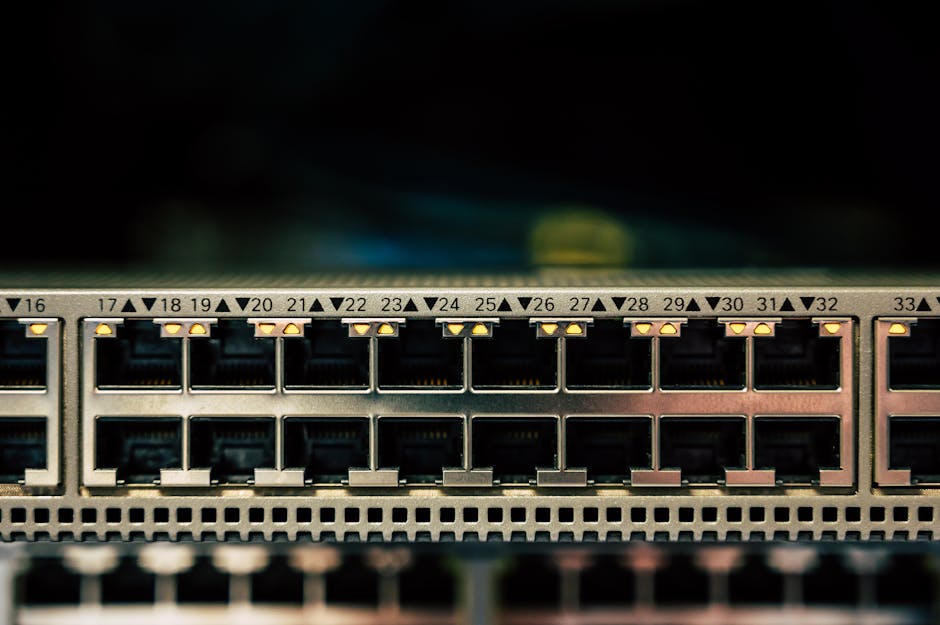
Photo by Brett Sayles on Pexels
## 3. Disable WPS and UPnP
WPS (Wi-Fi Protected Setup) lets you connect devices with a PIN—but that PIN is easily brute-forced in hours. UPnP (Universal Plug and Play) automatically opens ports for apps, creating security holes.
### What to Do:
- Turn off WPS in router settings (often under “Wireless” or “Security”).
- Disable UPnP under Advanced Settings or NAT section.
Why it matters: These features are convenience over security. Hackers exploit them to bypass your firewall.
## 4. Keep Firmware Updated
Router manufacturers release updates to fix vulnerabilities. Outdated firmware is the #1 reason routers get hacked.
### How to Update:
- Check for updates in router admin panel (often under “Administration” or “Firmware”).
- Enable auto-update if available.
- Or download the latest firmware from the manufacturer’s website.
Pro tip: If your router no longer gets updates, replace it—it’s a ticking security bomb.
## 5. Create a Guest Network for Visitors
Guests, smart TVs, and IoT devices should never be on your main network. A guest network isolates them from your computers and phones.
### Set Up a Guest Network:
- In router settings, find “Guest Network” or “Multi-SSID”.
- Enable it with WPA2 encryption (or WPA3 if supported).
- Use a different password than your main network.
Bonus: Disable “Allow Access to Local Network” for guests. They get internet, not your files.
## 6. Use a Strong Wi-Fi Password
A weak password like “password123” is crackable in seconds. Use a long, random passphrase.
### Password Rules:
- Minimum 12 characters (20+ is better).
- Mix uppercase, lowercase, numbers, and symbols.
- Avoid dictionary words, dates, or personal info.
Example: `C@t$&D0g!2024#WiFi` (easy to remember, hard to crack)
Where to store it: Use a password manager like Bitwarden or 1Password.

Photo by Jakub Zerdzicki on Pexels
## 7. Disable Remote Management
Remote management lets you access your router from outside your home. Unless you’re a network pro, turn it off.
### How to Disable:
- Look for “Remote Access,” “Remote Management,” or “Access from WAN”.
- Set it to Disabled.
- Also disable “Admin Access via Wireless” if possible.
Why: Hackers scan for open router admin panels. Disabling remote access blocks 99% of those attacks.
## 8. Enable MAC Address Filtering (Optional)
Every device has a unique MAC address. You can create a whitelist of allowed devices—everything else is blocked.
### How to Set Up:
- In router settings, find “MAC Filtering” or “Access Control”.
- Add the MAC addresses of your trusted devices (phones, laptops, etc.).
- Save and enable filtering.
Caveat: MAC addresses can be spoofed, so this is a secondary layer, not a primary defense. Use it alongside encryption.
## 9. Monitor Your Network for Intruders
Check connected devices regularly. Most routers show a list of “Attached Devices” or “DHCP Clients.”
### What to Look For:
- Unknown devices (e.g., “Unknown” or strange names).
- Devices with suspicious IP addresses.
- High bandwidth usage when you’re not streaming.
Action: If you see an unknown device, change your Wi-Fi password immediately and check for malware on your devices.
## 10. Use a VPN for Extra Privacy
A VPN encrypts all your internet traffic—even on public Wi-Fi. For home networks, a VPN adds a second layer of encryption beyond WPA3.
### Recommended Setup:
- Install a VPN on your router (if supported) to protect all devices.
- Or use a VPN app on each device (laptop, phone, tablet).
Why it helps: Even if a hacker intercepts your Wi-Fi signal, they can’t read VPN-encrypted data.
## Conclusion: Take Control of Your Home Network Today
Securing your home Wi-Fi network doesn’t require a tech degree or expensive equipment. Start with the basics: change defaults, enable WPA3, disable WPS, and update firmware. Then add layers like a guest network, strong passwords, and a VPN for maximum protection.
Your next step: Visit cybernote.tech for exclusive member resources, including router security checklists, VPN setup guides, and real-time threat alerts. Join our community to stay ahead of hackers and protect your digital life.