How to Recognize Phishing Emails and Avoid Online Scams in 2026
Phishing emails are more sophisticated than ever, but you can spot them by checking for urgent language, mismatched URLs, and unsolicited attachments. In 2026, scammers use AI-generated messages that mimic trusted brands, so always verify sender addresses, hover over links before clicking, and never share sensitive data via email. Use a password manager and enable multi-factor authentication (MFA) to block 99% of automated attacks. Stay ahead by treating every unexpected email as suspicious—your digital security depends on it.
## Why Phishing Is Still the #1 Cyber Threat in 2026
Phishing attacks account for over 90% of data breaches globally. Cybercriminals now leverage generative AI to craft personalized, grammatically perfect emails that evade traditional spam filters. In 2026, the average person receives 3-5 phishing attempts per week. Whether you’re a remote worker, a small business owner, or a privacy-conscious individual, knowing how to recognize these scams is non-negotiable.
Photo by Markus Winkler on Pexels
## The Anatomy of a Modern Phishing Email
### 1. Urgency and Fear Tactics
Scammers create panic to override rational thinking. Common triggers include:
- “Your account has been compromised—verify now!”
- “Unusual login detected from [Country]”
- “Final warning: payment overdue”
Action tip: When you feel rushed, stop. Legitimate companies never demand immediate action via email. Open a new browser tab and log in directly to your account to check alerts.
### 2. Spoofed Sender Addresses
AI tools now make it easy to fake “From” addresses. Look for subtle typos: `@micros0ft.com` or `@paypa1-security.net`. In 2026, scammers also use lookalike domains with Unicode characters (e.g., replacing “o” with “ο” from Greek alphabet).
Action tip: Always view the full email header in your email client. If the display name says “Amazon Support” but the actual address is `@amzn-help.ru`, delete it immediately.
### 3. Generic Greetings and Poor Grammar (Still Relevant)
Even with AI, many phishing emails use “Dear Customer” or “Dear User” instead of your name. Others contain awkward phrasing or mismatched fonts (a sign of copied text from multiple sources).
Action tip: Legitimate services address you by your registered name. If an email starts with “Dear Valued Member,” treat it as suspicious.
## Top 5 Phishing Red Flags in 2026
1. Unsolicited attachments – PDFs, Word docs, or ZIP files you didn’t request. They often contain malware or ransomware.
2. Mismatched URLs – Hover over every link (without clicking). The tooltip should match the displayed text. For example, “Click to reset password” should lead to `yourbank.com/reset`, not `bit.ly/3xYz`.
3. Requests for credentials – No legitimate company asks for your password, PIN, or 2FA code via email.
4. Too-good-to-be-true offers – “You won a $500 gift card!” from a brand you never interacted with.
5. Emotional manipulation – Appeals to sympathy (“Help a colleague in need”) or greed (“Exclusive investment opportunity”).
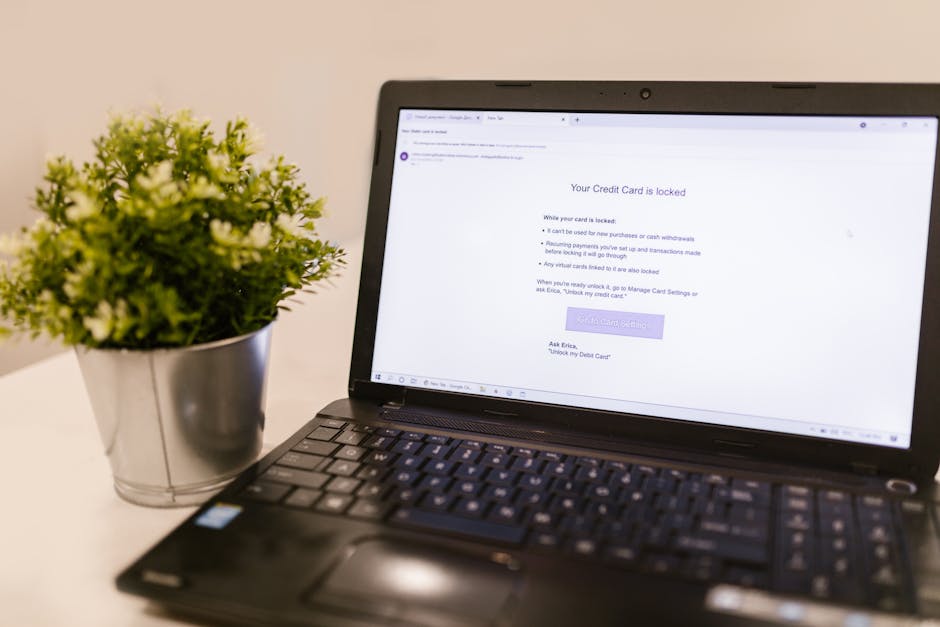
Photo by RDNE Stock project on Pexels
## Comparison Table: Legitimate vs. Phishing Email
| Feature | Legitimate Email | Phishing Email |
|---|---|---|
| Sender address | Matches official domain (e.g., `@cybernote.tech`) | Lookalike domain or public email (e.g., `@gmail.com`) |
| Greeting | Uses your full name | Generic (“Dear User”) or no greeting |
| Language | Professional, calm, no spelling errors | Urgent, threatening, or slightly off tone |
| Links | Hover shows exact company URL | Shortened links or misspelled URLs |
| Attachments | Rare, and only if expected | Common, often .exe, .docm, or .zip |
| Request | Directs you to log in via browser | Asks for credentials in reply or via link |
## How to Protect Yourself: A Step-by-Step Guide
### Step 1: Pause and Verify
Never click links or download attachments immediately. Instead:
- Call the sender using a known phone number (not one from the email).
- Forward suspicious emails to your IT department or a security tool like PhishTank.
### Step 2: Enable Multi-Factor Authentication (MFA)
MFA stops 99.9% of automated attacks. Use an authenticator app (like Google Authenticator or Authy) instead of SMS, which is vulnerable to SIM-swapping. In 2026, hardware security keys (e.g., YubiKey) are the gold standard.
### Step 3: Use a Password Manager
Password managers generate unique, complex passwords for every site and auto-fill them only on legitimate domains. This prevents you from typing credentials into a fake login page. Bitwarden and 1Password are top choices for privacy-focused users.
### Step 4: Keep Software Updated
Phishing attacks often exploit unpatched vulnerabilities. Enable automatic updates for:
- Operating system (Windows, macOS, Linux)
- Browser (Chrome, Firefox, Brave)
- Email client (Outlook, Thunderbird, ProtonMail)
### Step 5: Report and Delete
If you identify a phishing email, do not just delete it—report it:
- Gmail/Outlook: Click “Report phishing” in the menu.
- Security tools: Use add-ons like Avast or Kaspersky.
- Authorities: Forward to the Anti-Phishing Working Group at `[email protected]`.
Photo by RDNE Stock project on Pexels
## Real-World Example: The “Account Suspension” Scam
Scenario: You receive an email from “Netflix Support” claiming your account will be suspended in 24 hours. The email includes a button: “Reactivate Now.”
How to handle it:
1. Don’t click. Open a new tab and log into Netflix directly.
2. Check your account status. If it’s active, the email is fake.
3. Inspect the sender. In this example, the address was `[email protected]`.
4. Report the email to Netflix’s actual security team.
## The Role of Encryption and Privacy Tools
Phishing is a social engineering attack, but strong encryption and privacy tools add critical layers of defense:
- Email encryption (PGP): Encrypts your emails so even if intercepted, scammers can’t read them.
- VPN services: Hide your IP address, making it harder for attackers to target you based on location.
- Secure browsers (Brave, Firefox with privacy settings): Block trackers and malicious scripts.
At cybernote.tech, we offer premium guides and tools to help you deploy these protections effectively. Our membership site covers encryption, password hygiene, and real-time scam alerts.
## Conclusion: Stay Vigilant, Stay Safe
Phishing emails in 2026 are smarter, but your awareness is stronger. By following the steps above—pausing before clicking, verifying senders, enabling MFA, and using a password manager—you can avoid 95% of scams. Remember: when in doubt, don’t click out.
Ready to take your digital security to the next level? Join cybernote.tech today for exclusive tutorials, encrypted communication guides, and a community of privacy advocates who help each other stay one step ahead of scammers. Your safety starts with one smart decision.